How to Add Custom Columns to the WordPress Users Dashboard
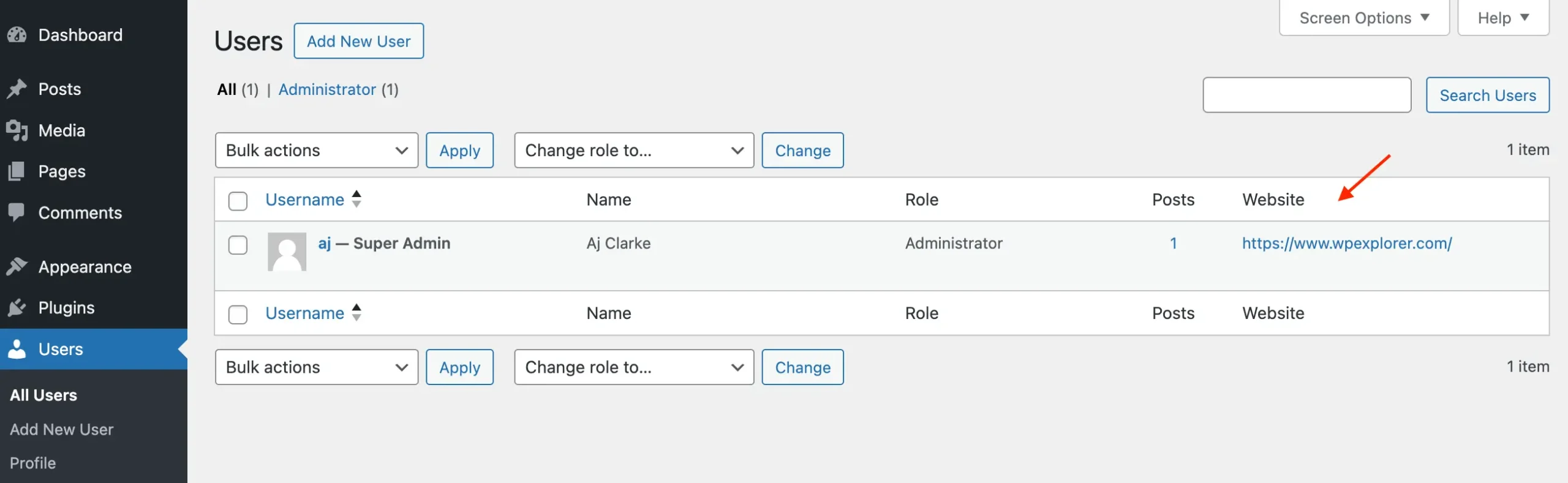
How to Add Custom Columns to the WordPress Users Dashboard I was recently doing some updates to a website that had hundreds of registered users. The updates required checking to see if a specific user meta field was empty or not. Rather then opening every single user and checking I decided to add a new column to the Users dashboard. This way I could skim through the dashboard and quickly locate any user that required updating. Adding custom/extra columns to the users dashboard can be very useful when managing sites with many users. Displaying data such as the user’s website, social links or even Yoast Seo open graph fields can make it easier to manage user data. Keep on reading to find out how you can add custom user columns without any 3rd party plugins. The code is very simple and for my example I will be adding a new “website” column to the users screen like the screenshot below: Adding New Columns to the Users Dashboard To start, we’ll want to hook into the core WordPress manage_{$screen->id}_columns filter. This filter is used to register new columns to any admin screen. For our purposes we’ll specifically target the “users” screen. Here is the code to add a new column to the users dashboard: /** * Add new columns to the users dashboard. * * @link https://www.wpexplorer.com/how-to-add-custom-columns-to-the-wordpress-users-dashboard/ */ function wpexplorer_add_new_users_columns( $columns ) { $new_columns = [ 'website' => esc_html__( 'Website', 'text_domain' ), ]; return array_merge( $columns, $new_columns ); } add_filter( 'manage_users_columns' , 'wpexplorer_add_new_users_columns' ); For my purposes I needed to see if the user’s “website” field was empty or not so in that’s what this example will do. With this code added to your site, if you visit the users dashboard you should see a new “Website” column. You can add more items to the $new_columns array for all the custom columns you need. The columns will be added to the “end” of the table. If you with sot display your custom columns before the core WP columns you can swap the variables in the array_merge() function. Populate Your Custom User Dashboard Columns Now that you know how to add new columns, the next step is to display data for the columns. For this, we are going to hook into the manage_users_custom_column filter. This filter can be used to modify the output for any user dashboard column. So we’ll need to specifically check for the columns we added. Here is an example of how you would populate the custom “website” field from the previous snippet: /** * Populate new users dashboard columns. * * @link https://www.wpexplorer.com/how-to-add-custom-columns-to-the-wordpress-users-dashboard/ */ function wpexplorer_populate_custom_users_columns( $output, $column_name, $user_id ) { if ( 'website' === $column_name ) { $user_url = get_userdata( $user_id )->user_url ?? ''; if ( $user_url ) { $output = '<a href="' . esc_url( $user_url ) . '">' . esc_html( esc_url( $user_url ) ) . '</a>'; } else { $output = '-'; } } return $output; } add_filter( 'manage_users_custom_column', 'wpexplorer_populate_custom_users_columns', 10, 3 ); With code added...
Preview: ~500 words
Continue reading at Wpexplorer
Read Full Article