How to Add Custom Block Styles in WordPress
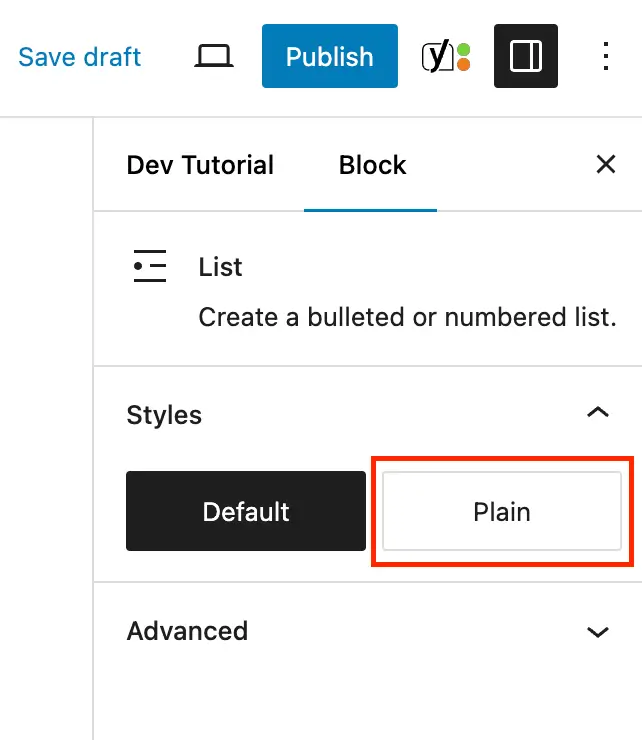
How to Add Custom Block Styles in WordPress If you have a look at the Gutenberg “Button” block and click on the styles tab (half moon cookie) you will see that you can select from Fill or Outline for it’s style. What if you wanted to add more options? Or you wanted to add style options to other blocks? In this guide, I will show you how to register your own custom block styles. In this article What are Block Styles? If you’ve come to this guide you probably already know what Block styles are. But just incase I will quickly explain. Actually it’s easier if I let WordPress explain for me. Below is an excerpt from the official Gutenberg documentation: Block Styles allow alternative styles to be applied to existing blocks. They work by adding a className to the block’s wrapper. This className can be used to provide an alternative styling for the block if the block style is selected WordPress.org So, block styles are options that you can click on when editing a block. When doing so, it will inject a classname to the block. This classname can then be referenced via CSS. Why Register Custom Block Styles? Registering custom styles will allow you to have different designs for your blocks that you can use in different contexts. For example, if your website is white and you insert a white picture in a post it may not look great. You could register a “Bordered” style for the Image block that adds a gray border around the image that will make it pop. Sure, you could just use the setting at Block > Advanced > Additional CSS class(es) to add custom classnames for your blocks. However, this requires remembering class names. And if you are working on a client site they will appreciate an easy way to apply custom designs to their blocks. An added benefit is that when you register custom block styles you can set the inline CSS for the style, this way the CSS is automatically added in the editor and the frontend whenever the style is selected. How to Register a New Block Style For the purpose of this guide, I’m going to focus specifically on server-side registering of custom styles. In other words, using PHP instead of Javascript. For most users, this will be easier and faster. You can quickly dump code into a code snippet plugin to add custom block styles to the site. So, to register a new block style with PHP you will use the appropriately named register_block_style function. This function takes to arguments: $block and $style_properties . So you would tell it what block you want to add your styles to and then an array of the style properties. Here is an example of adding a new “Plain” style to the List block: /** * Register custom block styles. * * @link https://www.wpexplorer.com/how-to-add-custom-block-styles-wordpress/ */ function wpexplorer_register_block_styles() { register_block_style( 'core/list', [ 'name' => 'list-plain', 'label' => 'Plain', ] ); } add_action(...
Preview: ~500 words
Continue reading at Wpexplorer
Read Full Article