I didn't realize my LG TV was spying on me until I turned off this setting
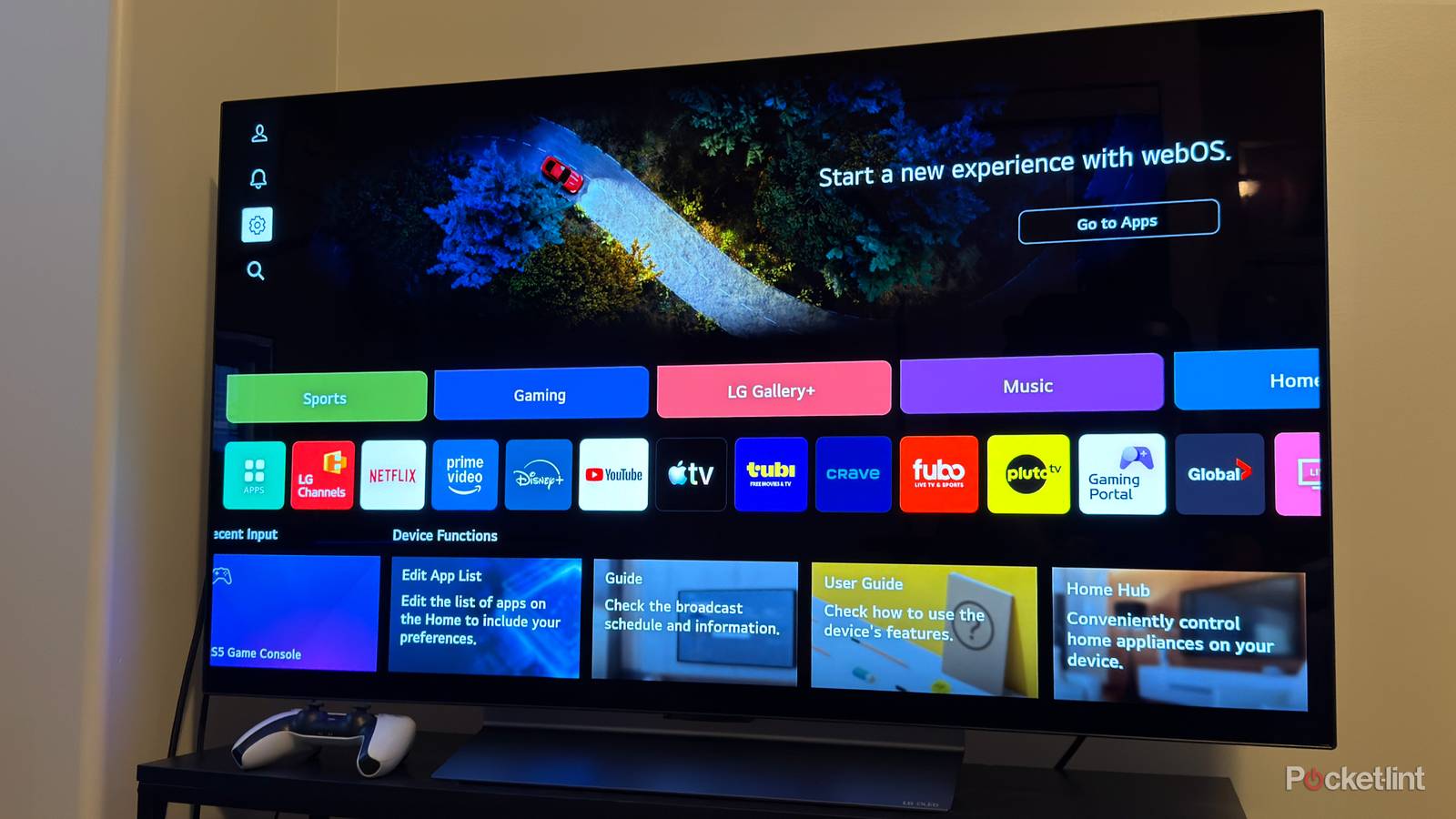
When I first set up my LG TV , my main focus was ensuring the picture quality was perfect. To LG's credit, the TV automatically detected all of my devices -- my PC, PS5, Switch 2, and Fire TV Stick 4K Max -- and applied the best settings for each. The image looked immaculate right out of the box, so I didn't spend much time digging through the settings menu and instead jumped straight into movies and gaming. However, about a week later, while I was trying to disable ads on the home screen , I stumbled across a setting I didn't even know existed and instantly knew I wanted to be disabled. It's called Live Plus. If you've never heard of Live Plus before, it's a feature on LG smart TVs that uses ACR (automatic content recognition) to analyze what's displayed on your screen (via The Markup ). LG then uses that data to offer "personalized services," including content recommendations and advertisements. Naturally, reading what the feature was on my TV was a bit of a shock. I wasn't thrilled to discover a setting enabled by default that essentially spies on my screen just for ads, but at the same time, I felt a wave of relief when I realized how easy it is to turn off. If you don't want your LG TV quietly snooping on what you watch and using it to serve you ads, here's how to turn Live Plus off. How to turn off Live Plus on your LG TV Other TV brands have a similar setting Thankfully, LG doesn't make disabling Live Plus too hard, though you do have to click through a few menus. If you want to turn it off, here's how: 1. Press the Settings button on your remote (the gear icon). 2. When the side menu pops up, select Settings . 3. Chose the General option. 4. Scroll down and select System . 5, Select Additional Settings . 6. Toggle Live Plus off . In the Settings menu on its TVs, LG says, "By turning Live Plus on, you understand that the content displayed on your TV can be recognized, and that the viewing information may be used to provide you with an enhanced viewing experience and personalized services including content recommendations and advertisements." Fortunately, once you've toggled Live Plus off, you no longer have to worry about your TV screen constantly being read to see what you're watching and to give you targeted ads. ...to be clear, this isn't just an LG problem -- other smart TV brands do the same thing with similar ACR (automatic content recognition) settings. While it's frustrating that a setting like this exists in the first place, I was at least relieved by how easy it was to turn off. And to be clear, this isn't just an LG problem -- other smart TV brands do the same thing with similar ACR (automatic content recognition) settings. On Samsung smart TVs, for example, you can...
Preview: ~500 words
Continue reading at Hacker News
Read Full Article