Convert Web Articles to EPUB for Kindle: The Complete Guide
📚 Convert Web Articles to EPUB for Kindle (Without the Pain)
Ever find the perfect article online—then give up because getting it onto your Kindle feels like a small IT project? You’re not alone. Web pages were built for browsers: ads, sidebars, infinite scroll, weird layouts, and scripts everywhere. Kindles were built for one thing: reading.
The result is predictable: you save links, your “read later” list grows, and you end up reading long-form content on your phone anyway. If you want a better workflow, the trick is simple:
✅ Convert web articles into an EPUB-style reading format that’s clean and reflowable, then deliver it to your Kindle in a way that preserves readability.
This page walks through the key idea, the realistic options, and the fastest workflow.
🎯 Why EPUB Matters (Even for Kindle)
EPUB (Electronic Publication) is the open standard for digital reading. It’s designed for text to flow properly on small screens, with chapters, headings, images, and metadata preserved.
That matters because EPUB gives you:
- Reflowable text (font size, margins, and screen size adapt cleanly)
- Better structure (headings, sections, table of contents)
- Smaller files than typical PDFs for article content
- Metadata (title, author, source) that helps you stay organized
- Portability (not trapped in one proprietary ecosystem)
Kindle uses Amazon formats (AZW/AZW3/MOBI), but EPUB is still the best conversion target because it preserves “book-like” structure better than trying to go web → MOBI directly.
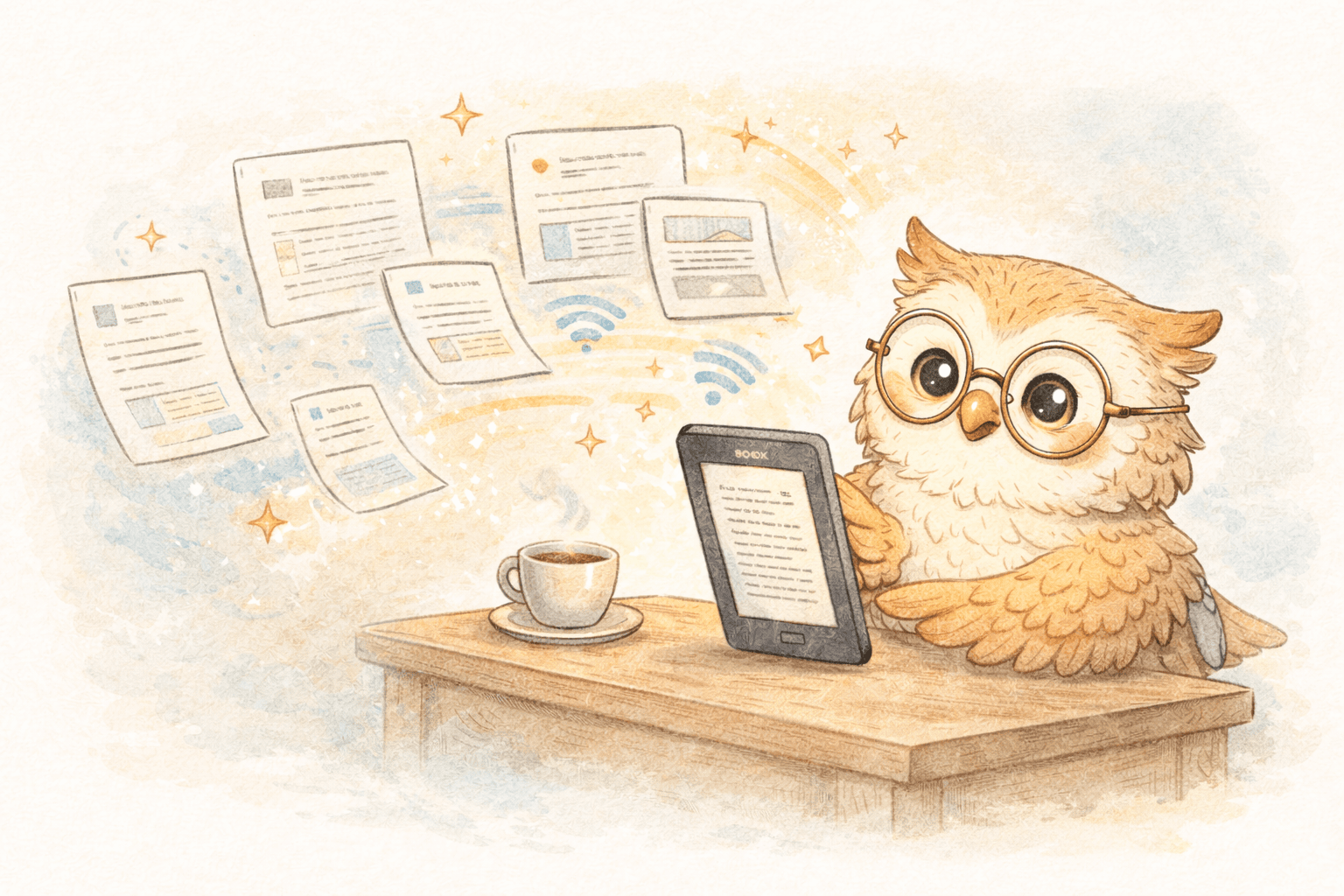
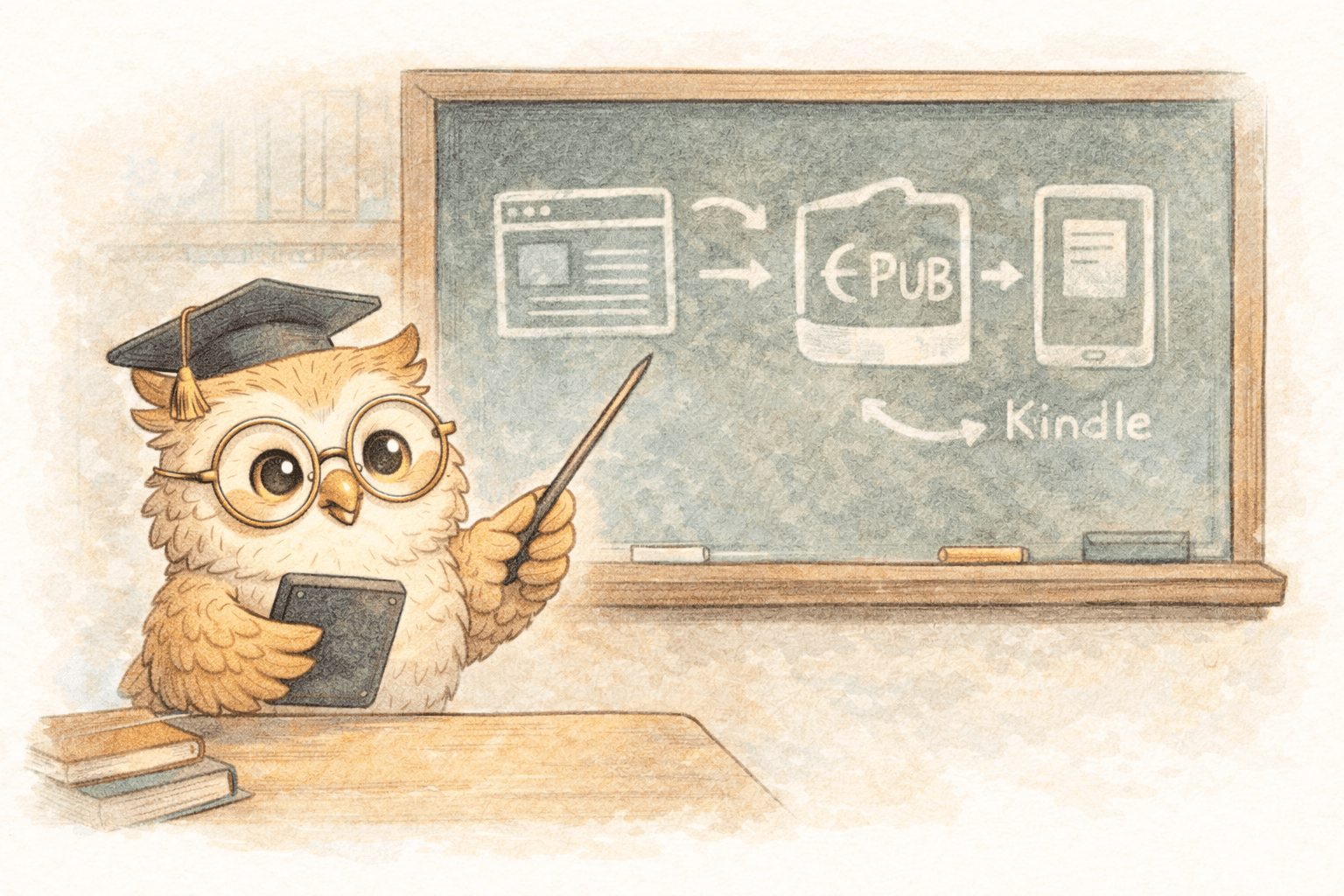
In practice, the winning pattern is often: Web page → clean EPUB → Kindle delivery/conversion
⚠️ Why Web Pages Convert So Badly
Web articles are not documents. They’re layouts.
Common conversion failures include:
- Layout destruction: CSS and responsive design don’t translate cleanly.
- Clutter: navigation menus, footers, “related stories,” cookie banners.
- Image weirdness: missing images, oversized images, bloated file size.
- Broken emphasis: italics/bold/code blocks mangled or lost.
- Missing metadata: title/author/date/source disappears.
- Encoding issues: special characters render as garbage.
If your conversions look like a ransom note, it’s not you—it’s the input.
🛠️ Option A: Manual Conversion (Works, but You’ll Hate It)
1) Calibre (powerful, fiddly)
Calibre can convert content into EPUB and then into Kindle-friendly formats, but you’ll spend time tweaking settings and fixing edge cases.
Pros: free, customizable, batch-capable
Cons: learning curve, inconsistent results, still manual file handling
2) Online converters (easy, unpredictable)
Paste a URL, download an EPUB, send it to Kindle.
Pros: fast for one-off use
Cons: quality varies, limited controls, privacy concerns
3) Generic web clippers (fragmented workflow)
Clip to Evernote/OneNote/etc., export, then convert, then send to Kindle.
Pros: decent for archiving
Cons: too many steps; conversion is an afterthought
Manual workflows work for occasional use. For regular reading, they don’t scale.
🚀 Option B: The Modern Workflow (One Click, Clean EPUB, Fast Delivery)
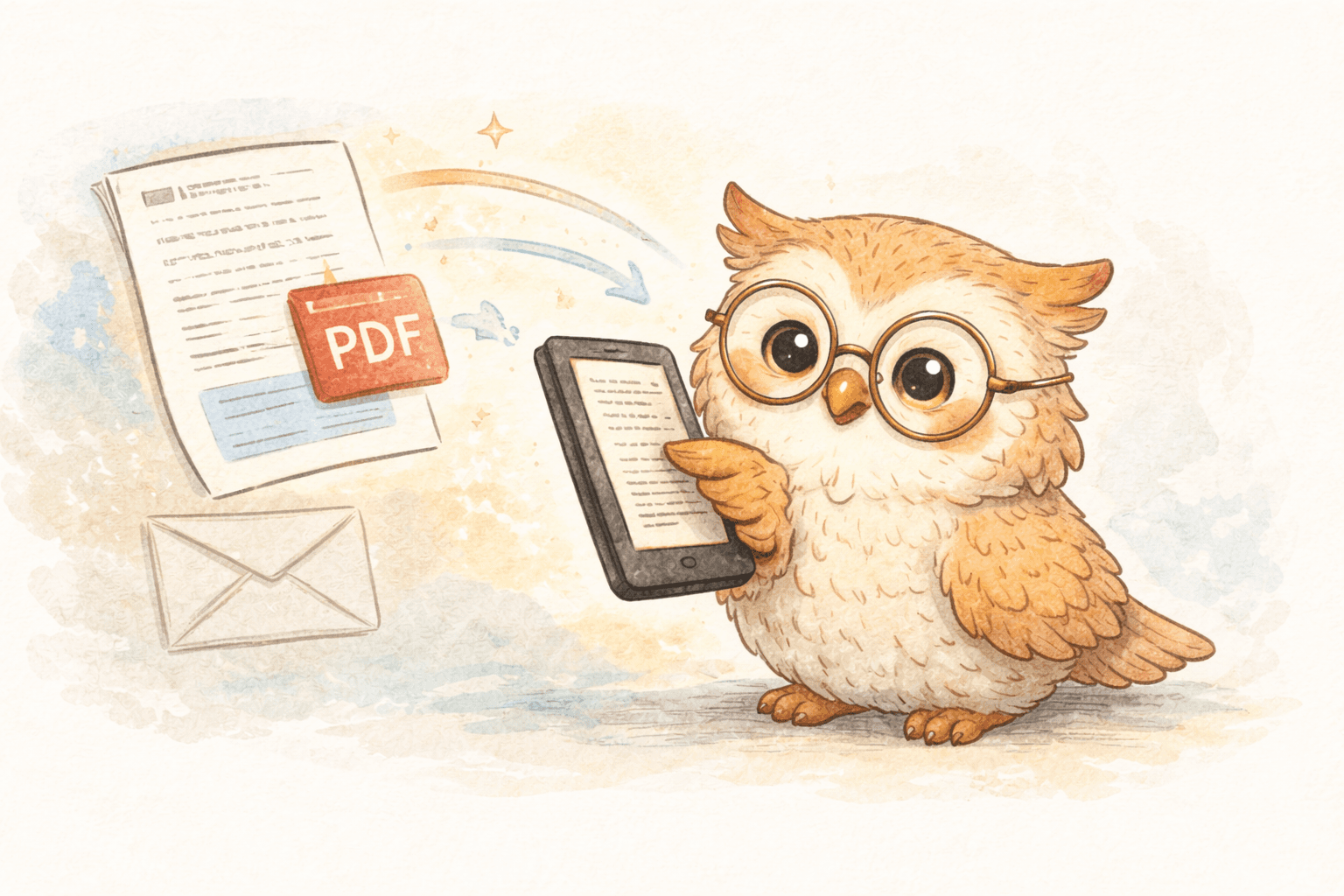
Purpose-built e-reader services solve the real problem: conversion is only half the battle. The other half is delivery, formatting, and habit formation.
A modern workflow looks like this:
Discover article → click once → clean extraction → EPUB optimized → delivered to Kindle
What to look for:
- One-click saving (browser extension)
- Smart extraction (removes clutter, keeps structure)
- Good formatting (headings, images, code blocks when possible)
- Fast delivery (minutes, not hours)
- Multi-format support (web, PDFs, newsletters, docs)
- Annotation export (Notion/Readwise/etc., if you care about retention)
This is where tools like LibSpace fit: it's designed for e-reader workflows, not phone reading. You click, it converts, and it delivers—without you becoming a part-time file librarian.
LibSpace integrates directly with Kindle and Boox devices for instant sync. Plus, if your e-reader supports Google Drive or Dropbox (like Supernote, PocketBook, or others), LibSpace works with those too.
✅ Best Practices (So Your Kindle Library Doesn’t Become a Dumpster Fire)
- Convert the right content: long-form essays, research papers, newsletters, docs you’ll actually read.
- Avoid “interactive” pages: live tickers, dashboards, heavy web apps—these won’t translate.
- Use Reader Mode if needed: cleaner source in = cleaner EPUB out.
- Keep a simple system: a “To Read” pile and an “Archive” is enough.
- Delete aggressively: an endless queue is just guilt with a scrollbar.
- Capture highlights: if something matters, export it into your notes system.
🎯 The Payoff
When web articles arrive on your Kindle in a clean, book-like format, two things happen:
- You read more of what you save. 📖
- Reading becomes a routine instead of a chore. 🧠
The web becomes your library—but your Kindle becomes the place where reading actually happens.
If you want the fastest path: use a workflow that converts articles cleanly and delivers them with one click. That’s the difference between “someday” reading and real reading.
Darcy Reno
Founder of LibSpace. 25+ years in technology leadership across the media and entertainment industry — including roles at Constellation Software, Electronic Arts, and Technicolor, and working alongside studios like DreamWorks Animation, Disney, and Nickelodeon. A passionate reader, Darcy built LibSpace to bridge the gap between online content and e-readers, with a focus on long-form articles, research, and journalism.
Try LibSpace Free for 30 Days
Send articles, documents, and web pages to your e-reader in seconds. No credit card required.